

What CMS Is This Website? 7 Ways to Check What CMS a Site Uses
The quickest way is a CMS detector: paste the address into WhatThemeIs and it names the platform, plus the theme and plugins. To check by hand, look for a generator meta tag in the page source, typical folder names such as /wp-content/, the admin login address and the HTTP headers.
- Use a CMS detector
- Find the generator meta tag
- Spot the telltale folders
- Check the admin login address
- Read the HTTP headers and cookies
- Look at the domain and the footer
- Open robots.txt and the sitemap
- Why a CMS can stay hidden
Whether you are researching competitors, pricing a redesign or just wondering how a site was made, the first question is usually the same: what CMS is this website built with? Every content management system leaves fingerprints. Some are obvious, some take a little digging. Here are seven ways to find them, from the fastest to the most technical.
1. Use a CMS detector
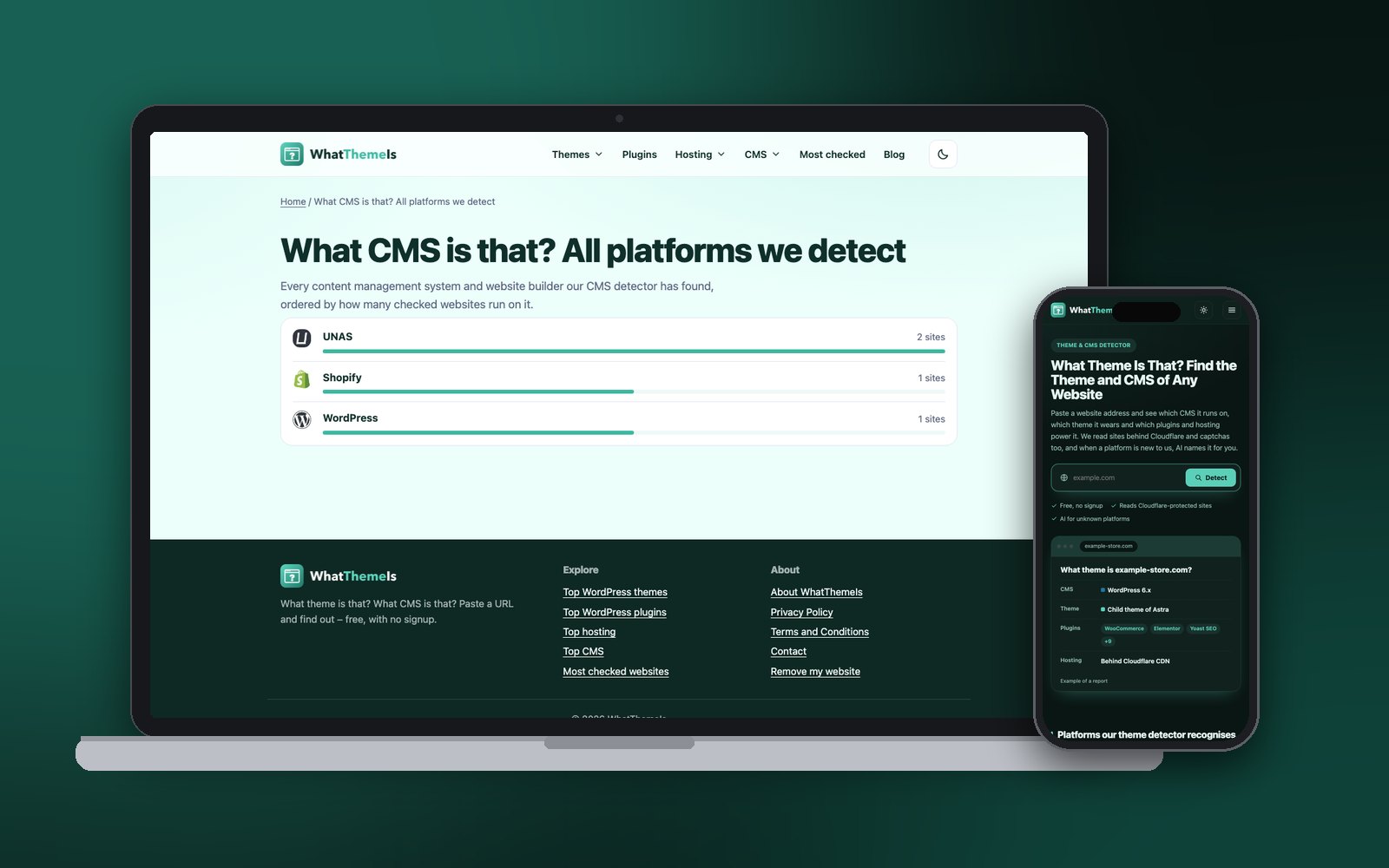
A CMS detector checks dozens of signals at once – meta tags, file paths, scripts, cookies and headers – and weighs them against known platform fingerprints. WhatThemeIs recognises WordPress, Shopify, Joomla, Drupal, Magento, PrestaShop, OpenCart, Wix, Squarespace, Webflow, Moodle, UNAS, ShopRenter and many more, and when a platform is new to us, an AI analysis of the public code names it.
What CMS is that site using? Find out now
Paste any address – the result appears right here.
2. Find the generator meta tag
Open the page source (Ctrl + U on Windows, ⌘ + Option + U on a Mac) and search for generator. Many systems announce themselves in a single line in the <head>:
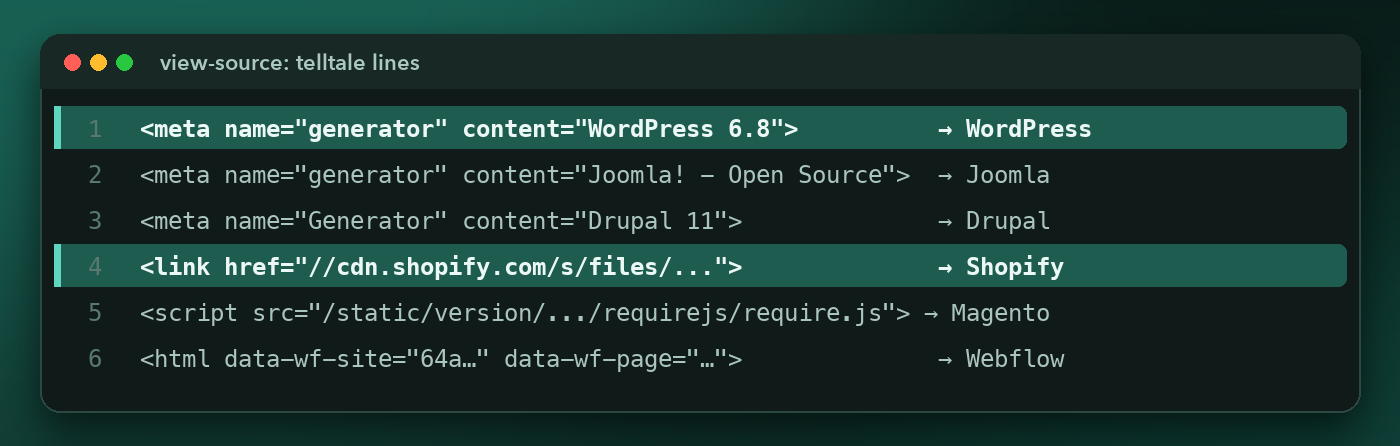
A missing generator tag proves nothing. Security plugins and careful developers often remove it, so always look for a second signal.
3. Spot the telltale folders
Even without a generator tag, the paths of images, style sheets and scripts usually give the platform away. Search the source for these:
| Platform | Look for in the source |
|---|---|
| WordPress | /wp-content/, /wp-includes/, /wp-json/ |
| Shopify | cdn.shopify.com, Shopify.theme, /cdn/shop/ |
| Joomla | /media/system/js/, /templates/, Joomla! |
| Drupal | /sites/default/files/, drupal-settings-json, /core/misc/ |
| Magento | /static/version, Magento_, mage/ |
| PrestaShop | prestashop, /modules/ps_, /themes/classic/ |
| Wix | static.wixstatic.com, wix- scripts |
| Squarespace | static1.squarespace.com, Static.SQUARESPACE_CONTEXT |
| Webflow | data-wf-site, website-files.com |
4. Check the admin login address
Most systems keep their login page at a standard address. Adding it to the domain and seeing a login form is a strong hint – just look, never try to sign in to someone else’s site.
| Platform | Typical login address |
|---|---|
| WordPress | /wp-login.php or /wp-admin/ |
| Joomla | /administrator/ |
| Drupal | /user/login |
| OpenCart | /admin/ |
| Shopify | /admin redirects to Shopify’s own login |
Magento and PrestaShop usually use a custom admin address, and many WordPress sites hide theirs with a security plugin, so a 404 here does not rule anything out.
5. Read the HTTP headers and cookies
Open your browser’s developer tools (F12), switch to the Network tab, reload the page and click the first request. In the response headers and cookies you may find clues such as:
X-Generator: Drupal 11– Drupal often names itself here.- Headers starting with
x-shopifyorx-shopid, and_shopify_cookies – Shopify. X-Wix-Request-Id– Wix.wordpress_orwp-settingscookies – WordPress (mostly after logging in or commenting).X-Powered-By: PHP– not a CMS, but it narrows the field.
You can also fetch the headers from a terminal:
curl -sI https://example.com6. Look at the domain and the footer
Hosted platforms often show themselves in the address itself – example.myshopify.com, example.wixsite.com, example.wordpress.com, example.webflow.io or example.unas.hu. On the page, scroll to the footer: “Powered by Shopify”, “Made with Squarespace” and similar credits are common on smaller sites.
7. Open robots.txt and the sitemap
Add /robots.txt to the domain. The rules inside are often copied from the platform’s defaults, for example Disallow: /wp-admin/ on WordPress or Disallow: /checkouts/ on Shopify. The sitemap address listed there – wp-sitemap.xml, sitemap_products_1.xml and so on – is another clue.
Why a CMS can stay hidden
The site is behind Cloudflare or a captcha
Firewalls answer simple tools with a challenge page instead of the real site. WhatThemeIs has additional ways to load the actual page, which is why it can identify many sites that other detectors cannot.
It is a headless or custom-built site
When a JavaScript front end (Next.js, Nuxt, Gatsby) displays content from a CMS in the background, the visible page carries the front end’s fingerprints, not the CMS’s. Look at image addresses and API calls for clues.
The developer removed the fingerprints
Generator tags, version numbers and default paths can all be hidden. Several weaker signals together are then the only way – which is exactly what a detector combines.
Use this list when you check a site by hand – tick off each clue you found:
- Generator meta tag
- Platform-specific folders in the source
- Admin login address
- HTTP headers or cookies
- Platform domain or footer credit
- robots.txt and sitemap pattern
Two or more matching clues give you a confident answer.
Skip the detective work – let the detector check every clue at once.
What CMS is that site?
